Saltar para o conteúdo
Consultoria · Automação · Dados · Digital

Category Archive vbacode

factorials

Excel VBA – Calculate Factorial

Excel VBA Code - Calculate Factorial

Well-structured VBA code for calculating the factorial of a number.

Open Microsoft Excel, create a new blank book, after go to TAB Programmer or click Alt+F11 and access to VBA Project.

Copy/paste code and try…

Sub CalculateFactorial()
Dim num As Integer
Dim result As Double

‘ Input
num = InputBox(“Enter a number:”)

‘ Calculate factorial
result = Factorial(num)

‘ Output
MsgBox “The factorial of ” & num & ” is ” & result
End Sub

Function Factorial(n As Integer) As Double
If n = 0 Then
Factorial = 1
Else
Factorial = n * Factorial(n – 1)
End If
End Function

VBA_Factorial_1-1024x498 Excel VBA - Calculate Factorial
VBA_Factorial_2 Excel VBA - Calculate Factorial
VBA_Factorial_3-1024x391 Excel VBA - Calculate Factorial
VBA_Factorial_4 Excel VBA - Calculate Factorial

O impacto da Impressão em Série Word (VBA)

O código a seguir, guarda em Word e em PDF documento a documentos de um ficheiro de impressão em série. 

Copie o código abaixo e cole em VBA no Microsoft Word, para abrir o Editor Visual Basic Applications:  (Alt+F11) ou lado direito do rato no separador(friso), personalizar separador e depois seleccionar Programador.

Sub Guardar_Imprimir_Individualmente()

‘Separa um registo de um ficheiro de impressão em série de cada vez para a pasta escolhida

Application.ScreenUpdating = False

Dim StrFolder As String, StrName As String, MainDoc As Document, i As Long

Set MainDoc = ActiveDocument

With MainDoc

  StrFolder = .Path & “”

  For i = 1 To .MailMerge.DataSource.RecordCount

    With .MailMerge

      .Destination = wdSendToNewDocument

      .SuppressBlankLines = True

      With .DataSource

        .FirstRecord = i

        .LastRecord = i

        .ActiveRecord = i

        StrName = .DataFields(“Partners”)

      End With

      .Execute Pause:=False

    End With

    With ActiveDocument

      .SaveAs2 FileName:=StrPath & StrName & “.docx”, FileFormat:=wdFormatXMLDocument, AddToRecentFiles:=False

      ‘ and/or:

      .SaveAs2 FileName:=StrPath & StrName & “.pdf”, FileFormat:=wdFormatPDF, AddToRecentFiles:=False

      .Close SaveChanges:=False

    End With

  Next i

End With

Application.ScreenUpdating = True

End Sub

Excel Geocoding

Geocodificação com Microsoft Excel e Bing Maps

Numa pesquisa sobre geocodificação usando Excel e Google Maps, encontrei um modelo de excel com todo o código já feito, bastante interessante. Para que funcione basta somente ativar as Macros no Microsoft Excel e criar uma chave API do Bing Maps.

Faça download em:

Excel Geocoding tool

Bing-Excel-geocoding_head-300x147 Geocodificação com Microsoft Excel e Bing Maps

Identificar linha e coluna

VBA- Identificar ultima linha e coluna da folha de calculo

Uma rotina que sempre precisamos recorrer nos nossos códigos e macros é aquela onde podemos recuperar a última linha e coluna que estão escritas na nossa folha de cálculo.Em diversas situações torna-se necessário utilizar esta informação, como por exemplo, quando precisamos percorrer todas as linhas da nossa folha de cálculo que possuam dados, seja uma lista de nomes, de produtos, de telefones ou qualquer outro tipo de lista. 

Neste artigo vou explicar como obter esta informação em qualquer folha de cálculo, automaticamente. 

O código aqui apresentado, serve para utilizar em qualquer folha de cálculo.

Já utilizei este código várias vezes, inclusive em exemplos já disponibilizados aqui no site. Um exemplo deste uso pode ser encontrado no artigo onde ensino a macro para enviar emails para sua lista ou neste outro no qual mostro como exibir uma barra de progresso para controlar o andamento do processamento da macro.

Este código é um exemplo e deverá ser contextualizado a cada projecto.

Para aceder ao editor de Macros VBA, carregue nas seguintes teclas: (ALT+F11),  de seguida insira um Módulo e digite/copie o código abaixo.

Sub UltimaLinhaColuna()

Dim iUltimaLinha As Long
Dim iUltimaColuna As Long
Dim sh As Worksheet
Dim rng As Range

Set sh = ActiveSheet ‘Referência a folha que pretendemos encontrar a ultima linha e coluna

Set rng = sh.Range(“A1”).SpecialCells(xlCellTypeLastCell)

iUltimaLinha = rng.Row ‘Encontra a última linha
iUltimaColuna = rng.Column ‘Encontra a última coluna

MsgBox “A última linha com dados é: ” & iUltimaLinha & vbCrLf & “A última coluna com dados é: ” & iUltimaColuna, vbInformation

End Sub

Voltando a folha de cálculo, para ver a lista de Macros criadas, carregue nas teclas:(Alt+F8) e de seguida execute  a macro criada (neste caso UltimaLinhaColuna)

Identificarultimalinhaecolunacomdados_acedermacro VBA- Identificar ultima linha e coluna da folha de calculo

Resultado final:

Identificarultimalinhaecolunacomdados VBA- Identificar ultima linha e coluna da folha de calculo

Enviar email quando Data de Envio for igual a Data Actual

Pretende-se com este código que quando a Data de Envio for igual a data em que nos encontramos é enviado um email ao destinatário.

O código pesquisa todos os registos e envia para cada email onde a condição da data for a data actual.

SendEmailonDate-300x161 Enviar email quando Data de Envio for igual a Data Actual
Código:
Public ws As Worksheet
Public iCount As Integer    ‘ String used to count exist records
Public lastrow As Long      ‘ String used to detect last used row to add next record
Private Sub cmdAdd_Click()
Dim TClientID As Integer
    
     iCount = Application.WorksheetFunction.CountIf(Range(“A1:A10000”), “C*”)
   
    With ws.UsedRange
        lastrow = .Rows(.Rows.Count).Row
    End With
    
    TClientID = ws.Range(“A” & lastrow).Value
    
    ‘Select new row to add record
    ws.Range(“A” & lastrow + 1).Select
    
    Me.Repaint
    Populate_Fields
    ‘Add next number to record
    Me.txtClientID = TClientID + 1
    
End Sub
Private Sub cmdClose_Click()
Application.DisplayAlerts = False
ActiveWorkbook.Save
Application.Quit
End Sub
Private Sub cmdSave_Click()
ActiveCell.Offset(0, 0).Value = Me.txtClientID.Text
ActiveCell.Offset(0, 1).Value = Me.txtName.Text
ActiveCell.Offset(0, 2).Value = Me.txtOrderedDate.Text
ActiveCell.Offset(0, 3).Value = Me.txtSendDate.Text
ActiveCell.Offset(0, 4).Value = Me.txtProduct.Text
ActiveCell.Offset(0, 6).Value = Me.txtEmail.Text
ActiveCell.Offset(0, 7).Value = Me.txtcontact.Text
MsgBox “Document Saved!”, vbOKOnly
End Sub
Private Sub cmdSendEmail_Click()
    Dim ws As Worksheet
    Dim oApp As Object, MailApp As Object, SendMail As Object
    Dim strbody As String
    Dim deldate As Variant
    Dim email As Variant
    Dim i As Integer
    
    Set ws = Worksheets(“sheet1”)
    ws.Select
      
    ‘Set numrows = number of rows of data.
     NumRows = Range(“A2”, Range(“A2”).End(xlDown)).Rows.Count
     
    ‘ Select cell A2
    Range(“A2”).Select
    
    ‘Get Delivery date
    lin = 2
    col = 4
    deldate = ws.Cells(lin, col).Value
    
    ‘Get email
    lin = 2
    col = 7
    email = ws.Cells(lin, col).Value
    ‘ -1 because sheet have header
    For i = 1 To NumRows – 1
    
            If deldate = Date Then
    
                ‘Create Email
                Set MailApp = CreateObject(“Outlook.Application”)
                Set SendMail = MailApp.CreateItem(0)
                ‘Conteudo corpo da mensagem
                strbody = “Your require thing has been delivered … ” & vbNewLine & vbNewLine & _
                          “Thanks” & vbNewLine & _
                          “…”
        
                On Error Resume Next
                With SendMail
                    .To = email   ‘<- Email to send
                    .CC = “”
                    .BCC = “”
                    .Subject = “Your require thing has been delivered …”
                    .Body = strbody ‘<- Body message
                    .Send ‘ .Display <- Before send email to client show
                             ‘ .send <- Send Email direct
                End With
                Else: Exit Sub
            End If
            ActiveCell.Offset(lin + i, 0).Select
            deldate = ws.Cells(lin + i, 4).Value
            email = ws.Cells(lin + i, 7).Value
    Next
         
    
End Sub
Private Sub UserForm_Initialize()
Set ws = Worksheets(“sheet1”)
Range(“A2”).Select
Populate_Fields
End Sub
Private Sub Populate_Fields()
Set ws = Worksheets(“sheet1”)
ws.Select
ActiveCell.Offset(0, 0).Select
Me.txtClientID.Text = ActiveCell.Offset(0, 0).Value
Me.txtOrderedDate = ActiveCell.Offset(0, 2).Value
Me.txtSendDate = ActiveCell.Offset(0, 3).Value
Me.txtName = ActiveCell.Offset(0, 1).Value
Me.txtProduct = ActiveCell.Offset(0, 4).Value
Me.txtEmail = ActiveCell.Offset(0, 6).Value
Me.txtcontact = ActiveCell.Offset(0, 7).Value
End Sub

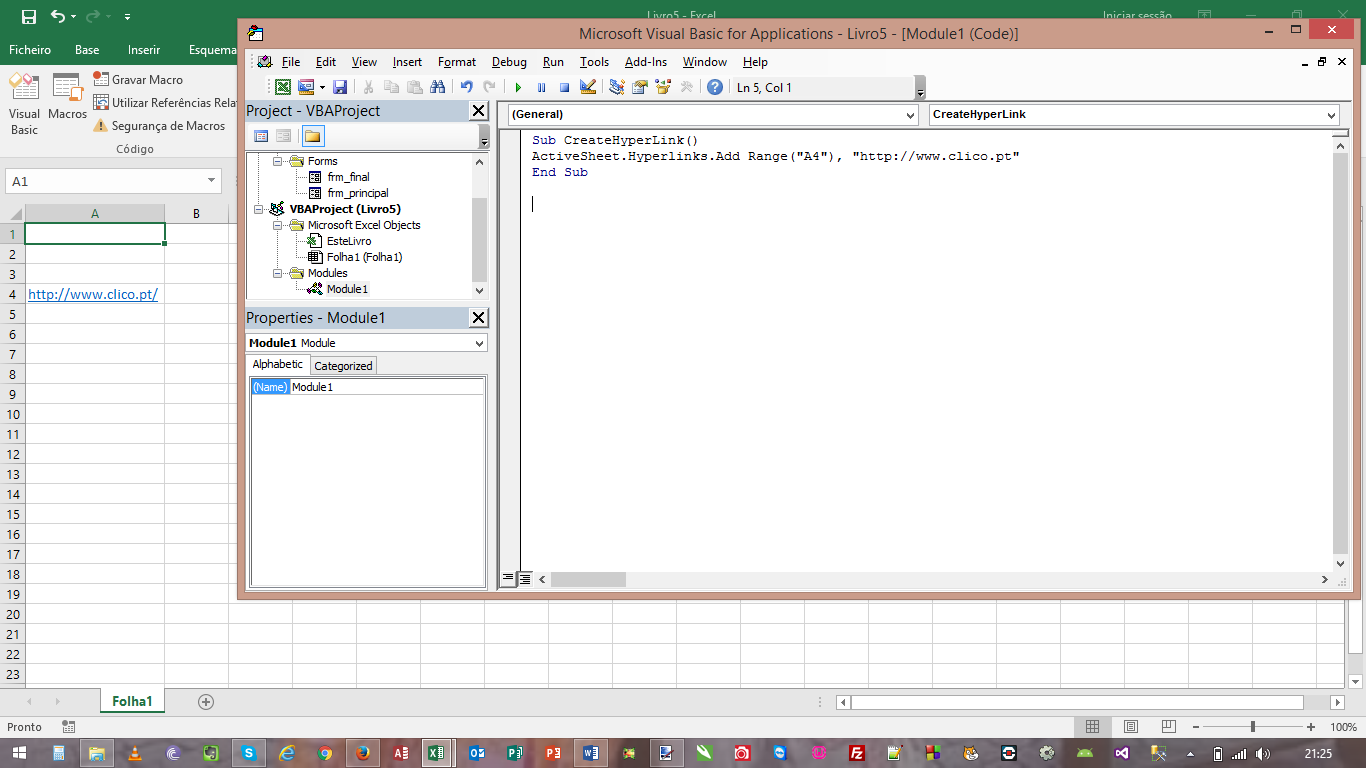
Criar Hiperlinks com VBA Excel

Criar Hiperlinks com VBA Excel:

1. Abra uma folha de Excel
2. Carregue em Alt+F11 para abrir o editor de VBA
3. Insira um novo módulo
4. Copie o código que se segue e cole na janela de codigo
5. Carregue em F5 para executar
6. Verifique que o link foi adicionado a célula A4

Create Hiperlinks with Excel VBA;
1. Open an excel workbook
2. Press Alt+F11 to open VBA Editor
3. Insert a New Module
4. Copy the above code and Paste in the code window
5. Press F5 to execute it
6. You can see a new hyperlink is added at A4

Sub CreateHyperLink()
ActiveSheet.Hyperlinks.Add Range(“A4”), “https://clico.pt/
End Sub

_CRIAR_LINK Criar Hiperlinks com VBA Excel

Codigo VBA – Verifica se Outlook esta aberto e devolve respectiva mensagem

Codigo VBA – Verifica se Outlook esta aberto e devolve respectiva mensagem experimente .

VBA Code – See if Outlook is running and give a message, try it

Outlook_Run-300x107 Codigo VBA - Verifica se Outlook esta aberto e devolve respectiva mensagem


Como Excluir Linhas Duplicadas no Excel com VBA (Passo a Passo)

_CODE_DELETEDUPLICATEDLINES Como Excluir Linhas Duplicadas no Excel com VBA (Passo a Passo)

Public Sub DeleteDuplicatedLines()
‘***************************************
‘*** Code to Remove Duplicated Lines ***
‘***** E-Mail: clico.tech@gmail.com  ******
‘***************************************
Dim r As Long
Dim C As Range
Dim N As Long
Dim V As Variant
Dim Rng As Range

On Error GoTo Erro
Application.ScreenUpdating = False
Application.Calculation = xlCalculationManual

If Selection.Rows.Count > 1 Then
Set Rng = Selection
Else
Set Rng = ActiveSheet.UsedRange.Rows
End If

N = 0
For r = Rng.Rows.Count To 1 Step -1
V = Rng.Cells(r, 1).Value
If Application.WorksheetFunction.CountIf(Rng.Columns(1), V) > 1 Then
Rng.Rows(r).EntireRow.Delete
N = N + 1
End If
Next r

Erro:

Application.ScreenUpdating = True
Application.Calculation = xlCalculationAutomatic

End Sub

Show Buttons
Hide Buttons